This chapter describes and explains the global application settings. These settings are project independent and thus available at any time, regardless of user login and opening a project.
Contents
2.4 Initial Parameter display mode
2.7 Confirm reverting parameters to main alternative values
2.8 Avoid exact overlapping of nodes
2.10 Label location for link sequence
2.11 Color gradation of lead time layers
|
Setting language |

In order to change the language, just select the desired language from the drop-down menu. The setting will be applied automatically.
Changing the language not only adapts SimVSM ’s dialog guidance, but also the attributes of the value stream objects according to the selected language.
Static and dynamic key Figures are also specified in the desired language.
|
Server URL |

The status of the server connection is displayed in the Server URL line. To adjust the URL, simply click on Edit at the end of the line.
|
Return license |

The user can disconnect from the server using the Return license button. This causes the view to switch back to the login screen, as described in the Login window chapter.
Information on the currently used license is also displayed (type, validity).

Figure 1 - General settings

Figure 2 - Overview settings
The Grid square width and Grid square height option can be used to determine the size of the grid in the modeling area (see Figure 3). At project settings (local) the grid can be enabled / disabled.

Figure 3 - Grid squares
The Routing behavior for new links setting can be used to specify the display of the connections between the objects.

Figure 4 - Routing behavior for new links
In the Parameter box size setting, you can select between two sizes in which the parameter boxes are to be displayed in the modeling area.

Figure 5 - Parameter box size
2.4 Initial Parameter display mode
With this setting, you can determine which parameter display should be preset (see chapter Overview modeling surface).

Figure 6 - Parameter display mode
The number of decimal places can be specified here. This setting applies to all parameter displays and all static key figures.

Figure 7 - Decimal places

Figure 8 - Toolbox position
2.7 Confirm reverting parameters to main alternative values
If the check box is activated, a dialog box is displayed in which the user can accept or reject the resetting of the values to the values of the main alternative (see General settings section 6)

Figure 9 - Revert parameter
2.8 Avoid exact overlapping of nodes
If the check box is activated, objects in the modeling view cannot be positioned exactly on top of each other.

Figure 10 - Overlapping
This option can be used to specify how many objects the algorithm should suggest for further modeling of the value stream.
Details about this function can be found in the chapter Handling value stream objects.

Figure 11 - Number of suggested items
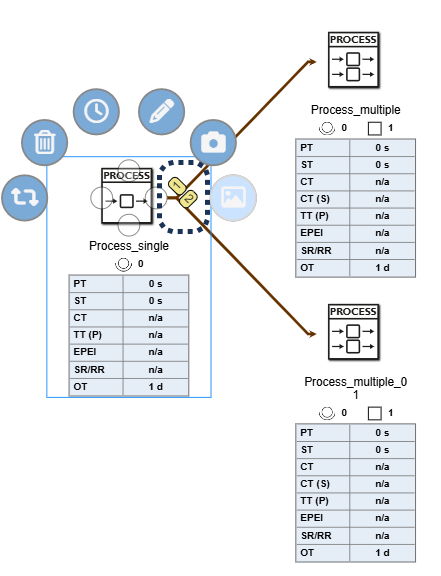
2.10 Label location for link sequence
Set the link label position to the main node or the connected node.

Figure 12 - Label location
Figure 13 - Label location Main node |
Figure 14 - Label location Connected node |

2.11 Max. color gradation of lead time layers
This option can be used to specify how often the colors of the information flow levels should repeat.

Figure 13 - Color gradation
With this setting you can choose between static display of time units and the respective conversion into the appropriate unit.
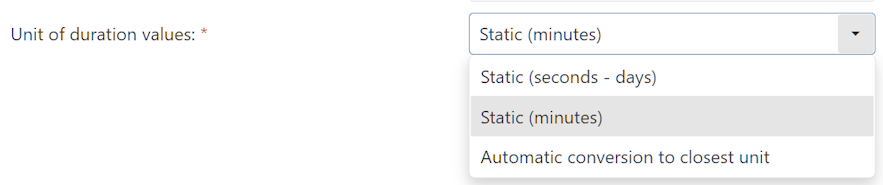
Figure 14 - Duration values
© SimPlan AG - Hanau District Court, Commercial Register (Part B) 6845 - info@simplan.de - www.simplan.de/en