This section lists common error messages and describes possible solutions.
Contents
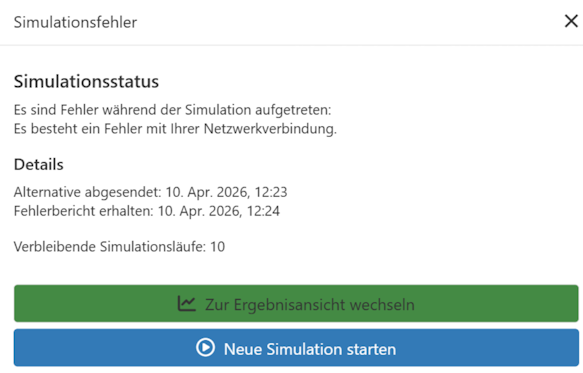
Figure 1 - Simulation Error
The following steps can resolve the error:
•In App Settings --> Server URL, check whether an active connection to the server is displayed.
•Firewall / Security Software: Ensure that the application and the required ports are not blocked by a local firewall, antivirus program, or endpoint security software.
•Proxy or corporate networks: If a proxy or a restrictive corporate network is being used, check whether outgoing HTTPS connections are allowed or whether the proxy is configured correctly.
•VPN connections: Active VPN connections can interfere with communication with the server. Check whether the problem also occurs without a VPN.
•Network stability: Even if the internet is generally working, brief connection interruptions can occur. As a test, run the simulation from a different network (e.g., a hotspot).
•System time and DNS: A system clock that is significantly out of sync or unusual DNS settings can prevent SSL connections. Ensure that the date and time are automatically synchronized.
The below table lists errors, categorized into specific error classes.
The following are intentionally omitted from the table:
•Confirmation dialogs (e.g., "Are you sure you want to delete this?")
•Information and success toasts (e.g., "Results received")
Message |
Category |
Action |
Description |
|
UI - Validation |
Correction by the user |
Model validation via the UI. Detailed information is available via the tool tip. |
|
UI - Validation |
Correction by the user |
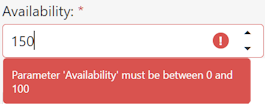
Parameter validation via the UI. Inputs are validated before saving. Detailed information is available via the tool tip. Examples: Value range (Min/Max), required fields, valid time/date formats, special characters in module names. |
|
Model validation before simulation |
Correction by the user |
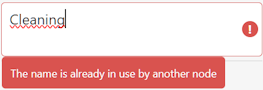
Structural check of the entire model immediately before sending it to simulation. Examples: duplicate object names, incorrect measurement point configuration (exactly one start and end measurement point). |
|
Backend - Plausibility check |
Correction by the user |
Plausibility check by the simulation backend (SimController). The error is reported back after the model is sent. Visible in the simulation status popup (“Simulation Errors”) and as the "Simulation Errors" section in the results view. Toast message: "The detailed error report is available in the results view." Examples: unfulfillable jobs, semantic model errors not detected in the UI. |
|
License / Authorization Errors |
Use a different license |
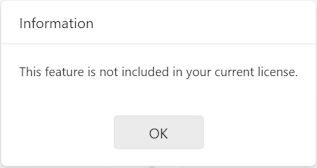
The requested function is not available with the current license or user account. Typical messages: "No simulation runs available for the current account." "This feature is not included in your current license" |
|
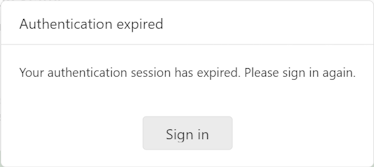
Authentication / Session Expiration |
User must log in again |
The authentication session (Azure MSAL token) has expired or become invalid. Messages: • "The authentication session has expired. Please log in again." • "Server request failed. Re-authentication required." After a successful login, the application continues; unsaved changes made locally are preserved. |
|
Connection / Availability |
Check the connection or check the availability of the backend system |
No connection to the backend system (SimController). Uploading projects and simulation runs is not possible. Working locally on the model is still possible. Status indicator permanently displayed on the Wi-Fi icon in the bottom left corner. If an attempt is in progress, a toast notification also appears: "Server not available. Please try again later." Sub-variants: no server URL configured, incompatible server version. |
|
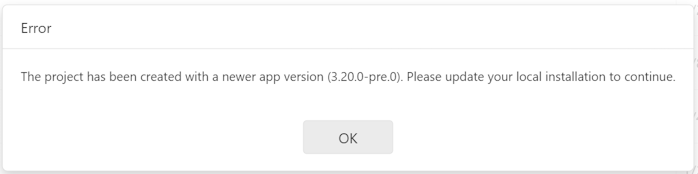
Project Import / Version Compatibility |
Update the app version, or open the project in a compatible app version |
The project to be imported or downloaded was created with a newer app version and cannot be opened. Message: "The project has been created with a newer app version ({version}). Please update your local installation to continue." Also occurs with corrupted or structurally invalid project files. |
|
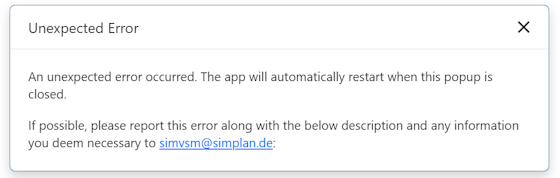
Unexpected Error |
Depending on configuration: • Automatic report to Sentry, or • Manual feedback via email to simvsm@simplan.de |
The Popup displays the stack trace and application information. Sentry automatically receives the report, if enabled. The application automatically restarts upon closing. Possible causes: Version discrepancies between the model and UI version, corrupted project data, unexpected data from external services. |





© SimPlan AG - Hanau District Court, Commercial Register (Part B) 6845 - info@simplan.de - www.simplan.de/en